
Visual-Inertial Research / Original EGO R9 technical guide informed by IMU2CLIP research / Nov 10, 2026
Egocentric Video with IMU: R9 Research Clip Library
Build a research clip library of egocentric video with IMU using EGO R9: 1080P global-shutter video, a six-axis IMU above 200 Hz and shared timestamps.
How can R9 support a research library of egocentric video with IMU?
- Capture workstation view changes with R9 1080P global-shutter video at 30 FPS.
- Retain the six-axis IMU record with its documented sampling specification above 200 Hz.
- Use shared-clock and global-timestamp support to associate the selected video and inertial intervals.
- Researchers prepare clip descriptions, interval indexes and multimodal retrieval experiments.
Egocentric video with IMU gives an AI engineer two related records to examine: the scene visible from the wearer's head and the inertial signal accompanying a change of view. EGO R9 combines 1080P global-shutter video at 30 FPS with a six-axis IMU sampling above 200 Hz, shared-clock support and global timestamps. A focused laboratory collection can turn those records into a research clip library organized around head turns between a computer screen and a nearby workbench.
A research question for corresponding video and motion
IMU2CLIP studies how corresponding inertial recordings, video and text can be represented together, including motion-based media retrieval. That research motivates a practical data-preparation question for an R9 research session: how can an engineer retain the original visual and head-motion context of a short clip? The proposed workflow below builds a traceable library of intervals and researcher-written descriptions.
Record a screen-to-bench view change with R9
Set up a workstation with a monitor and a small test board on the desk. During a take, the R9 wearer can read an instruction on the monitor, turn toward the board, inspect its visible components and return to the screen. Retain the whole sequence, including the turns. Give each take a source identifier and note the workstation arrangement so the engineer reviewing it can understand which screen or bench area entered the first-person view.
Use R9's adjustable camera angle to frame the monitor and tabletop from the wearer's normal seated posture. Its documented 120-degree wide-angle lens helps include the nearby working context. Check a short saved rehearsal as the wearer changes view in both directions, then keep that wearing arrangement consistent for the take. The useful content is the visible transition between areas, including the frames immediately before and after the tabletop inspection.
Keep the R9 video and acquisition setting together
R9's 1080P, 30 FPS global-shutter configuration provides the visual record for this review. A global shutter exposes the frame together during a head turn. Inspect the recorded screen edge, desk boundary and test board as they pass through the image, and retain the complete source video. R9 also lists H.265 video in MP4 format; keeping the original recording makes each selected clip traceable to its source take and documented acquisition setting.
Preserve the head-mounted inertial interval
The R9 six-axis IMU has a documented sampling rate above 200 Hz. Retain the supplied inertial record and its timing information with the video. Shared-clock and global-timestamp support provide the common time reference for locating the inertial interval associated with a visible change of view. Record the supplied session configuration with the files, keeping the manufacturer's sampling specification and the actual acquisition notes clearly identified.
Create corresponding clip-library entries
Build each library entry around a source take and an explicit start and end time. For example, one entry might contain the turn from the monitor toward the board; another might cover the following stable view of the tabletop. Use the recorded time reference to select the corresponding video and inertial intervals. Keep a pointer to the original take with both selections so a reviewer can reopen the surrounding context when checking a boundary.
Add a short description of the visible event, such as “turn from monitor to test board” or “hold a stable view of the tabletop.” The engineer writes and reviews these descriptions while watching the R9 recording. A useful entry contains the take ID, interval boundaries, video reference, inertial-record reference and description. This links what a person can see in the clip with the accompanying head-motion record in a form suitable for a researcher-designed multimodal study.
Develop and review a retrieval experiment
IMU2CLIP's alignment of motion, video and language offers a research basis for experimenting with these corresponding entries. The research team can develop a retrieval experiment that uses a description or a motion interval to locate candidate clips, then inspect the returned R9 video. Keep the experiment's model settings and review notes with its results. The R9 contribution is the documented visual-inertial capture; the team prepares the interval library, descriptions, software and retrieval evaluation.
Review a selected entry at its start, middle and end. Confirm that the video still shows the event described and that the associated inertial selection uses the same source take and recorded time interval. A stable tabletop view and a turn back toward the screen can appear next to each other in one take, making the chosen boundary meaningful. Revise the entry when its description covers only part of the selected visual event.
Retain a reproducible R9 research collection
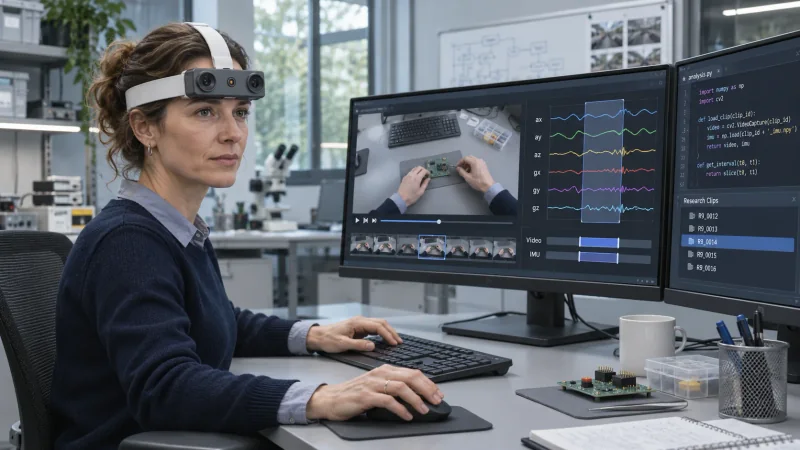
Keep the complete R9 take, the supplied inertial and timing records, the session configuration and the reviewed clip index together. When an engineer creates another library version, preserve its entry identifiers and record which descriptions or boundaries changed. The illustration shows this technical-review concept: an R9 wearer at a laboratory workstation, corresponding video and inertial selections on one monitor, and researcher-written code and clip identifiers on the other.
How should an R9 visual-inertial clip library begin?
Start with a defined view change at the workstation and capture it with R9. Preserve the 1080P global-shutter video, the six-axis IMU record and the shared time reference. An AI engineer can then prepare corresponding intervals and concise descriptions, giving egocentric video with IMU a specific role in a traceable research clip library.
How are video and IMU selections associated?
Use the source take ID and recorded start and end times to associate the selected video with its inertial interval. R9 shared-clock and global-timestamp support establish the timing basis; the research team creates the index that retains these associations during review and experimentation.
Which R9 settings belong with each entry?
Record the documented 1080P, 30 FPS configuration, the R9 device identifier, the supplied IMU configuration and the camera wearing angle with each session. The manufacturer specifies six-axis IMU sampling above 200 Hz. Keeping those notes with the original recordings allows the engineer to interpret each library entry in its acquisition context.
Research references and R9 specifications
IMU2CLIP — video, inertial signals and language (EMNLP 2023)